
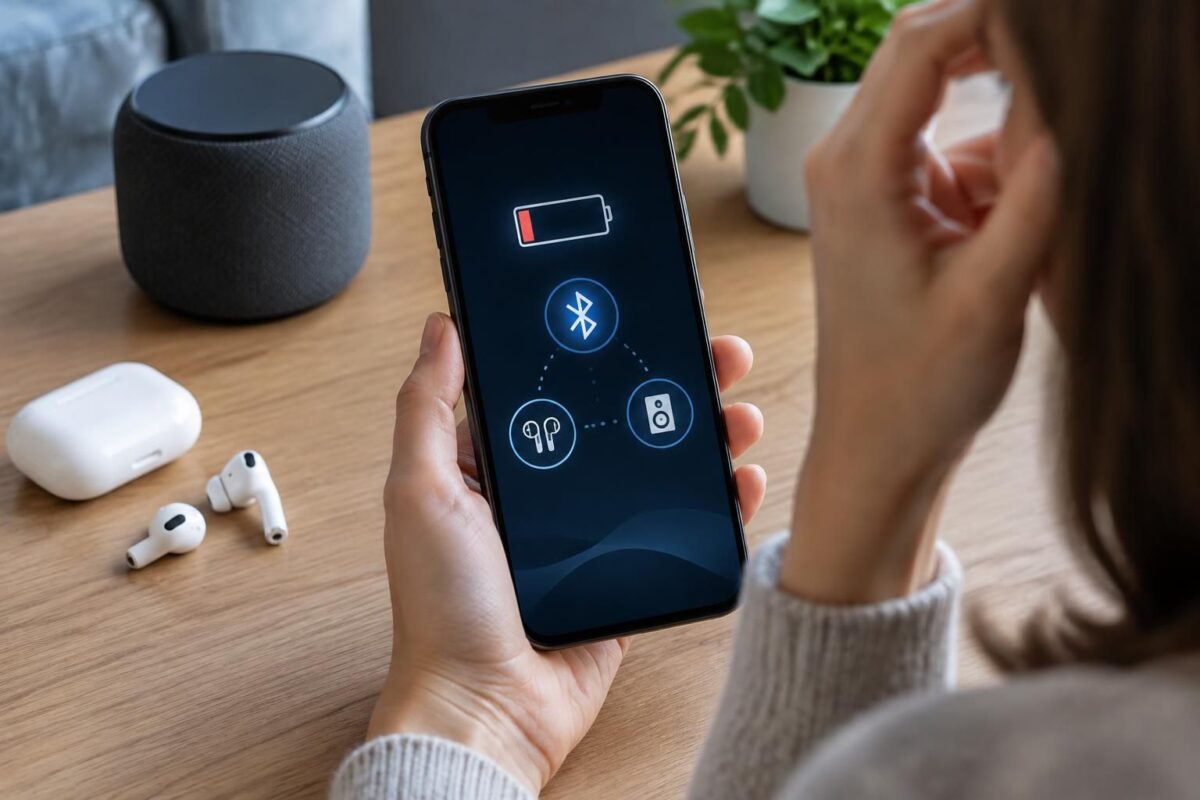
Bluetooth Apps: Why Battery Life So Often Disappoints
Hi, Gérald here. Bluetooth apps are most disappointing when they frequently sync data or stay active in the background, not because Bluetooth always uses a lot of power.
Power consumption depends on how you use your devices, your phone settings, and the connected devices. A few simple checks can help you identify what is actually draining the battery and maintain a reliable wireless connection.
What to do now
- Identify mobile apps that continuously sync data.
- Check their background activity in your battery settings.
- Turn off syncs you don’t need throughout the day.
- Charge your accessories and phone before testing battery life.
- Compare power consumption over one day with and without the app in question.
Bluetooth is generally energy-efficient when transmitting little data; it’s often the app that regularly uses the connection, GPS, or mobile network that increases power consumption. To understand connection settings, check out this guide to advanced Bluetooth, then find out how to avoid interruptions with these tips for preventing Bluetooth dropouts.
Why Bluetooth apps sometimes reduce battery life
An app paired with a watch, headphones, or sensor may start syncing regularly. If it constantly checks notifications, location, or health data, your phone works harder, even with the screen off.
So Bluetooth alone doesn’t always explain a noticeable drop in battery life. The screen, GPS, mobile data, and background processes can have a greater impact, while the connected accessory also uses its own battery.
The real power drain often comes from background activity
Imagine Léa, who uses a smartwatch and a fitness-tracking app. If the app syncs every movement and keeps location services active, the phone’s battery may drain faster than it would with an idle Bluetooth connection.
By contrast, occasional syncing of simple data often has a moderate impact. Optimizing power use means limiting unnecessary tasks, not necessarily turning off every connection.
Identify the source of power consumption
Before changing any settings, check your phone’s battery stats. They show which apps have used the most power and, depending on the model, distinguish between screen-on use and background activity.
| What you notice | Possible cause | Useful check |
|---|---|---|
| An app appears at the top of the list even though you haven’t opened it | Excessive syncing or background activity | Check its activity time and permissions |
| The battery drains mainly when you’re out | Location services, mobile data, and continuous tracking | Test the app without GPS if that suits how you use it |
| The phone’s battery life is fine, but the accessory’s battery drains quickly | Frequently used sensor or aging battery | Reduce how often measurements are taken and check the accessory’s condition |
| Dropouts occur in power-saving mode | Restrictions on background tasks or the connection | Check the battery settings for the Bluetooth app |
Menus vary between Android, iOS, and phone brands. Look for sections such as “Battery,” “Apps,” or “Background App Refresh” instead of following a single set of steps exactly.
Bluetooth settings: finding the right balance
On some Android phones, an overly strict battery restriction can suspend an app linked to an accessory. This can cause sync delays or disconnections. However, there’s no need to give every app unrestricted access: reserve it for apps that need to stay active.
On Windows, a power management setting can also turn off the Bluetooth adapter to save energy. If the connection drops mainly after the computer wakes from sleep, check the adapter’s properties in Device Manager before changing other settings.
Three steps to improve battery life without losing the connection
- Measure first. Note your battery use over a typical day and identify the app or accessory that seems responsible.
- Reduce unnecessary tasks. Space out syncs, turn off unnecessary notifications, and limit location access when it isn’t essential.
- Test one setting at a time. If dropouts continue, allow background activity for the app in question or check the adapter’s power-saving settings, then observe the results for a day.
This approach helps you avoid turning off Bluetooth blindly. It also helps distinguish a software issue from a worn-out accessory battery or a connection disrupted by distance and obstacles.
Frequently asked questions about Bluetooth and battery life
Does Bluetooth drain your phone battery quickly?
Not necessarily. A Bluetooth connection that is used infrequently generally consumes little power; frequent syncing, location services, and background tasks can contribute more to battery drain.
Should you turn off Bluetooth to save battery?
Not automatically. Start by limiting unnecessary activity in associated apps. Turn off the connection when you’re not using it if you want to reduce data exchanges and avoid persistent connections.
Why does my app disconnect when my phone is locked?
A power-saving mode may restrict background activity. Check the app’s battery settings and allow it to run if continuous syncing is necessary.
Can a low accessory battery reduce your phone’s battery life?
Depending on the device, it can lead to repeated reconnections or syncing. Charge the accessory and check whether dropouts and phone power consumption decrease.
Thanks for reading! Feel free to share your observations in the comments. — Gérald